Well, there’s some other good news too. Wacom delivered the something to me door yesterday to review here on the blog. I’ll be doing a more detailed write-up for both Windows and Mac in the near future, but thought y’all might be interested in the unboxing – seeing what you get from the good folks at Wacom when you order a:
BAMBOO FUN!
So, here’s a little teaser video for those that are interested:
This might be fodder for an upcoming contest or giveaway, but only time will tell, so keep your fingers crossed. In the meantime, here’s the rest of the Friday news:
Get a good laugh at What the Duck (here’s my favorite)
Check out Jason Moore’s blog – he draws something positive from my negative too (thanks Jason!)
Okay all, that’s it – been a crazy busy week, and I am tired, but also geared up for the weekend. Happy shooting and we’ll see you back here next week for hopefully a little more of an uplifting series of content!
As economic belts are cinched, and we start spending our dollars more carefully than ever before, I am getting email a lot from photographers asking “What should I be charging for this event?”, or “A client wants a digital negative, what’s a fair rate?”, and even, “How much is my work worth?”
Truth be told, the economics of photography sales are just as much a mystery to me, and I don’t have all the answers. But I know a few things about where to start, and how to research. First and foremost, is to know your market. Are you working in NYC, or in Duluth MN? Have you looked at other photographers’ websites? What are they charging? Are they start-ups or established companies? What kinds of services do they offer? What kinds of services do you offer? Do you provide print fulfillment or is that out-sourced? What is your overhead? Cost of equipment? Cost of training? The whole 9 yards – it’s a lot to filter. Well, here’s some software that can give you a leg up in that regard – FotoQuotePro.
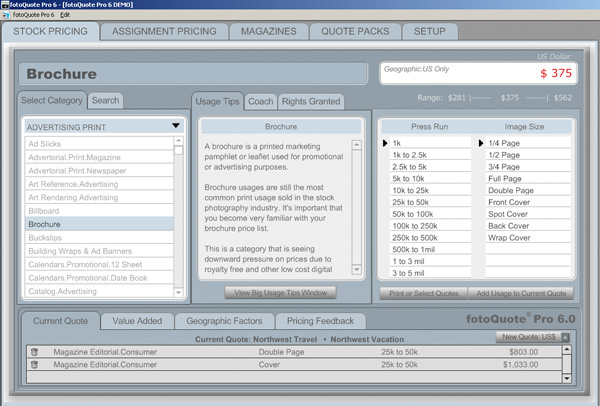
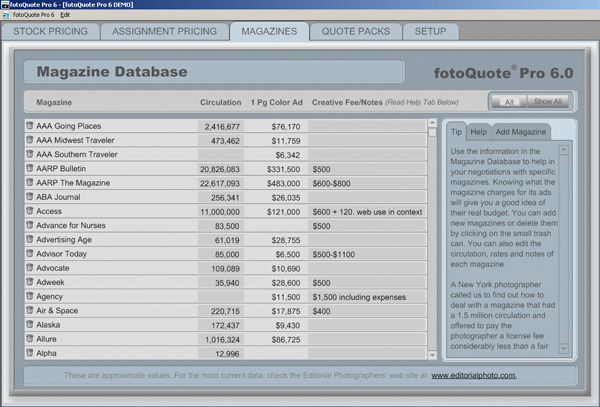
This software is very well designed and offers you rates for a wide variety of publications, ranging from magazines, to journals, brochures, quarterly reports, and a plethora of other variations. Quarter page prints, half page, full page, distribution of media, and many other factors are tallied in to help Fotoquote determine your rate. Granted this may not help the startup in portrait work, but if you are looking to market your work toward commercial and stock sites – this is definitely the software for you. And now, in a special offer here at the blog – I’ve been able to garner a 33% discount for some lucky listener. That’s right…33%!! It regularly goes for a price of $150, and the good folks over at Cradoc Foto Software have generously donated a discount code. Rather than buy and install it myself, I would like to pass this savings on to some lucky reader of the blog.
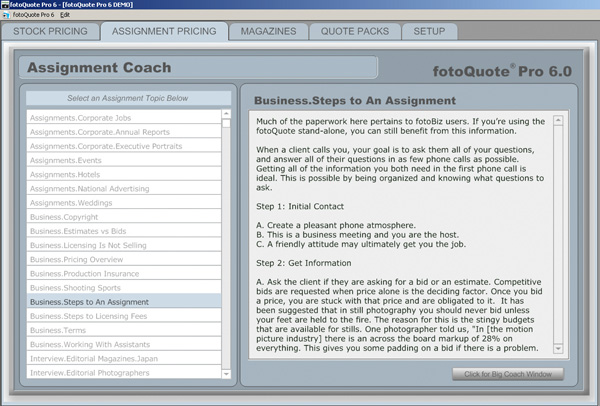
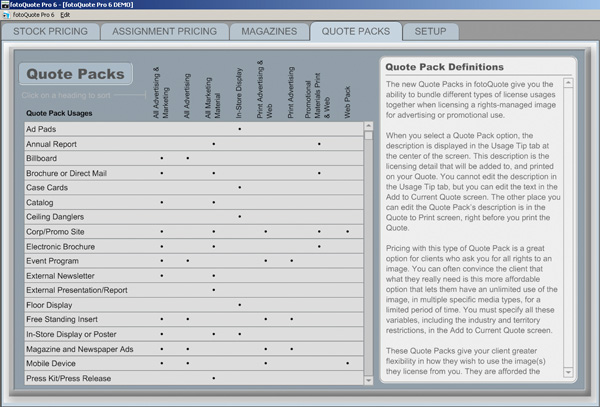
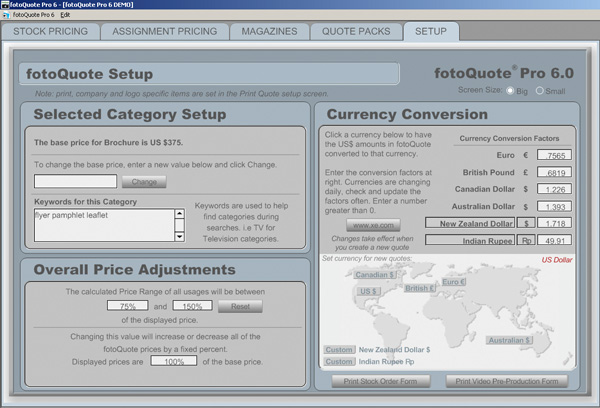
So, here’s how the winner of the discount code will be chosen – post a comment here at the blog. Say what you like about the software, why you could use it, or simply introduce yourself to the rest of the readership. This particular post will take comments through the end of June, so you have about two and a half weeks to get something out there and get a chance to win the discount code. In the meantime, head on over to Cradoc Foto Software and download a trial to see what the program is all about. In the meantime, here’s a few screen shots from the demo version to show you what they have to offer…
Tab 1 of FotoQuote ProTab 2 of FotoQuote ProTab 3 of FotoQuote ProTab 4 of FotoQuote ProTab 5 of FotoQuote Pro
Happy shooting, and we’ll see you back here again tomorrow! (Oh yeah, and don’t forget, you can also share your thoughts and suggestions for future hardware and software reviews that take place right here on the blog! Let me know what you think as it’s the contributions of readers that make this such a fulfilling blog – who knows, there might be a giveaway in that too!)
First up – another web gallery of water drops – this time with a neutral black background that I developed in Lightroom. I am tellin’ ya – this product is just too cool! Photo management, editing, tagging, and gallery production all in one – what’s not to love?
Also up today, a little shout out to Dave Zarzacki, who owns a like new Canon XSi in mint condition, but just doesn’t need it in his gear bag (he’s trying to round out his collection with an SLR that will take all his current lenses). It’s a great deal which includes the following:
XSi body (black) – $640 value from B&H
Canon 18-55 IS lens – $60 value as part of above kit from B&H
Tiffen UV filter – $7 value from B&H
2 4GB SDHC cards – $25 value from Amazon
Gary Fong Puffer flash diffuser – $20 value from B&H
M-Rock Yellowstone bag ($54 value)
Individually, this would sell for over $800 easily, and Dave is only asking for $650 plus shipping. I know the guy personally and can say that he knows how to take care of gear – this stuff will not have a scratch or scuff and will work as though new. A great deal for someone starting out! Any takers? Drop me a line to get his email address and information.
Finally, for today, the Sigma lenses are in, and I can’t wait to start the review process on these this weekend! Already found a few features that are just too cool for school! Some other gear review items are on deck too – but I want to hear from you! What do you want to learn more about in the way of products, gear, accessories, and such? Sound off in the comments or with me via email!
Happy shooting all and we’ll see you back here tomorrow!
Initially, this week was supposed to be the second in a series of software review posts to take a more detailed look under the hood at Photoshop Elements as an alternative to Photoshop Creative Suite. Truth be told though, the more I poke under the hood with Adobe’s Lightroom, the more hooked I get. One of the absolute best features (in my opinion) is the web gallery options available to you in Lightroom. The options are endless! You can go from standard HTML, to Flash-based templates, and hybrids, with customizations galore.
One of my favorites though, is how Adobe integrated a certain type of web gallery – those from Airtight Interactive. Not sure what the deal was, but the delivery of images via these methods is just amazing! So amazing, that I had to visit the website of the developer a while back just to see for myself. The best part is that this guy developed even more than what’s in Lightroom. I literally could get lost in these viewers, and as a fan of imagery – cannot imagine anyone similarly inclined that would not just love these displays. Easy to install, a snap to finish, and Adobe Lightroom integration – what’s not to love. Rather than go into the nitty gritty details, I’d rather just let the products speak for themselves in a few web galleries I put together. There are four main ones, with three having Lightroom integration: Simple Viewer, Tilt Viewer, Auto Viewer, and Postcard Viewer. Each holds appeal for me, and depending on the imagery I am delivering, I can see where each may be the one of choice.
Airtight Simple Viewer
For me, the go-to one is the Simple Viewer though. Clean, simple, easy lines, and somewhat traditionalist, the simple viewer allows for intuitive and easy navigation while delivering your images with precision and clarity. This type of display option is great for people who enjoy looking at images, but also don’t want to have to think about how to do anything. Just click and serve up the next image. Clean, simple,and to the point. Artistic types and non-artistic types alike will enjoy this for the ability to rapidly peruse many images fluidly and easily. No muss, no fuss, just photos!
Here’s a sample gallery from a little photo project I did over the weekend.
Airtight Tilt Viewer
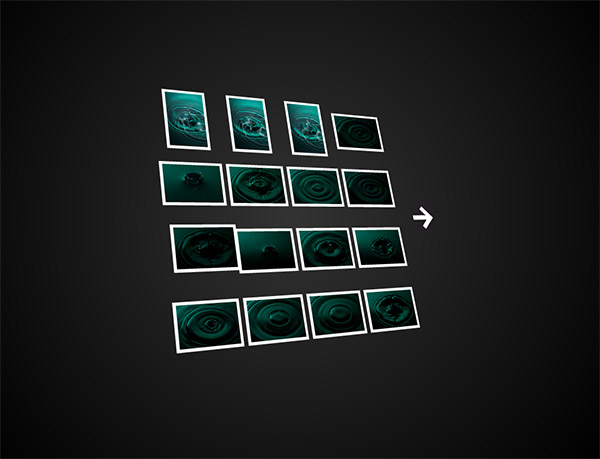
A little tricker to manipulate for the one viewing the show, I can see why Adobe didn’t want to incorporate this one into their web presentation. Where the Simple Viewer is easy to manipulate for even the most simple-minded, you actually have to have a little acuity and dexterity to maneuver your mouse to control this slideshow. I think portfolios that would work well with the Tilt Viewer are ones that are are more edgy and off the beaten path. The grunge type look is pretty popular right now and these galleries work well in this kind of display because the viewer that comes here is more artistically inclined to begin with, so they probably enjoy the “tilted view”.
Here’s another sample gallery from that photo project I did over the weekend, as well as the preview of it in a browser:
Airtight Auto Viewer
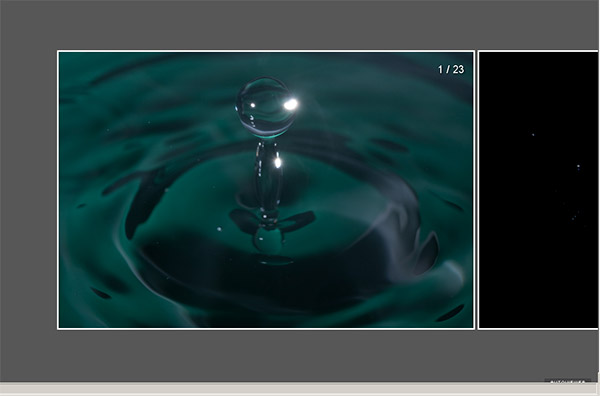
By its own definition, the auto viewer is “designed to display a linear sequence of images and captions”. Photo journalists may find the chronological characteristics of their work to fit well in this viewer, as would sequential types of shots. Event photographers would find some appeal in this also because it delivers up a single image at a time, which gest every image some “face time”, whereas the Simple Viewer is more of a mass display where the viewer can just pick out their favorites to view closer.
Here’s that same gallery viewed in this style. Because of the nature of this project, it actually may look a little disjointed, but only because I purged out some less than desirable shots before creating each gallery, so there could appear to be gaps. When approached from a more journalistic approach, that element could easily be managed with more inclusion. For RSS readers, here’s a snapshot of the gallery in a web browser:
Airtight Postcard Viewer
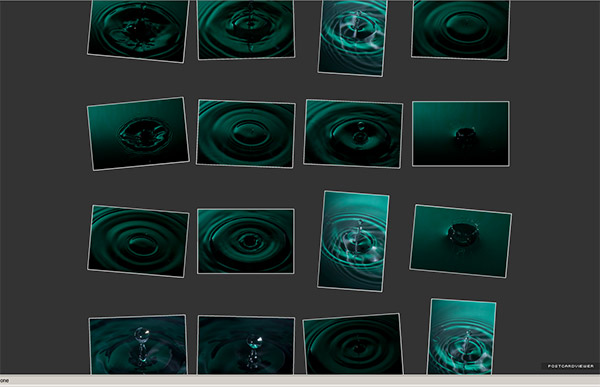
Here, the gallery has a great blend of classic photo gallery look and feel, while also incorporating a more “regular” sense to it. The very name “postcard” suggests that anyone could look through this album and feel like they were a part of it. Journalistic styles and event work would find appeal here again, but this style also lends itself toward the enthusiast or “prosumer” who wants to share their works with family and friends, but wants to do it with panache or style. My only nit is that you only get one page of photos in either the LR or PS versions so images will extend above or below your page limit. So, with this in mind, keep your galleries under the 20 count or keep the images smaller.
And finally, the photo gallery from this perspective, and a quick view:
*****
Having seen and read about each flavor, it’s your turn now. What do you think of this approach toward web galleries? Any particular favorites out there? What about other web gallery options? Any alternative approaches that people find unique or that offer an interesting way to display images? Sound off in the comments, and let me know what you think – one may just end up getting reviewed! 🙂
In the meantime, happy shooting, and we’ll see you back here tomorrow!
Lame teaser alert, but that’s the title for the podcast over at Learning Digital Photography. Make sure to stop over to the podcast and download the show today! Here’s the show notes (I may add to these as I remember link references – if any are missing, let me know in the comments so I can be sure to add them…)
The last day to enter your photos for the Lightroom giveaway is super close – so get your shots in the Flickr thread here pretty soon!
Adobe updated the ACR to 5.4 (still in beta), and is downloadable here
Canon announced some firmware updates and break/fix news on some of its SLR lines. Tune into the podcast for details.
Seriously folks, don’t miss out on your chance for a free copy of Adobe Photoshop Lightroom! Get your photos in today! A $30o retail value and free from the folks over at Adobe – in this economy we could all use a little help and Adobe is being very generous here.
Well, that’s about all for this week. Thanks for tuning in and we’ll see you back here on Monday – as we head out for the weekend, don’t forget to have fun out there. With that in mind, here’s my favorite WTD from this past week – so fitting for my job in IT!
Happy Shooting!
ETA: Thanks to reader Don for reminding me about the link to the PhotographyBB magazine article. You can download the full magazine here
One of the more popular posts here on the blog has been two that consisted of explanations on how to bracket multiple exposures in camera in order to capture a wider range of exposure values than is typically permitted in a single frame. Typically, these various exposures are then seamed together in some editor like Photoshop, Photomatix or other that is available to produce an effect called HDR – high dynamic range. You can get some impressive results with various techniques that appeal to different subjective perspectives.
Here at the blog though, rather than take sides on such post processing methods, it’s more fun to show people how to do things, and then let you all take your own liberties either with the approach or with your processing afterward, or both to get results that appeal to you! With that in mind, the feedback I’ve received from the previous discussions included a large number of people that asked for visuals of the process (I guess they are all visual learners).
Well, rather than take several dozens of images showing all the various settings and then explaining how I got toeach, a video seemed a more appropriate approach. So, here’s the video short for those of you that requested visual aids. It’s not the most professional but you should be able to get the gist.
This would also be a good time to remind everyone that we are in the dwindling days of the Adobe Lightroom contest. You can win your own free copy of Adobe Photoshop Lightroom, courtesy of the folks at Adobe, simply by entering images you’ve taken in May over at the LDP Flickr thread. Limit two images per person, but there’s still room for many more entries (no limit on the number of PEOPLE that can participate!) just join the group for free and post your images. Good luck to all and may the best photo win! (Final results will be posted in June – I’l send my top ten picks back to Tom Hogarty for final judging when he’ll pick the winner!)
That’s it for today – I should have the podcast up tomorrow, but as always, no promises as my schedule has been fluctuating at work lately. Happy shooting, and I will be back with more news, information, insights, tips and tricks tomorrow, whether in written or audio form. Thanks for tuning in and we’ll see you back here again tomorrow!
This first day after a long Memorial weekend, things are a little slow out of the starting gate, but as luck would have it, slow and steady is the theme for today, because my gear review that I postponed from yesterday is none other than the trusty tripod!
The tripod is probably one of the most basic and easy-to-understand pieces of equipment in a photographer’s gear bag – yet likely one of the least used. I can’t tell you the number of times (myself included) I have heard someone utter “Argh! I left my tripod back in my car!” We’ve all done it, so the question becomes one of how to ensure you take the tripod with you. The answer lies in making the right investment the first time.
FOr me, the first investment (because we all invariably try this route first), was a cheap an economical one from Wal-Mart for roughly $20. I was quickly disavowed of its ability to support even a Canon XT with a 70-200 lens on it. I went so far as to weigh down the plastic center column with my gear bag to little avail. It was just not built for my gear. Perhaps such a tripod would be good for the P&S crowd, because I would rather not disparage any gear intended to provide an increase in stability.
Anyone who goes to any length to increase their camera stability recognizes the benefit of a tripod. So many pictures out there can benefit from increased stability – yet they continue to pepper the internet in perpetuity. So, if you really are strapped for cash – something is better than nothing. But, if you would like to invest a little in “some legs” (parlance for a tripod among photog-types apparently), then take a look at Bogen/Manfrotto.
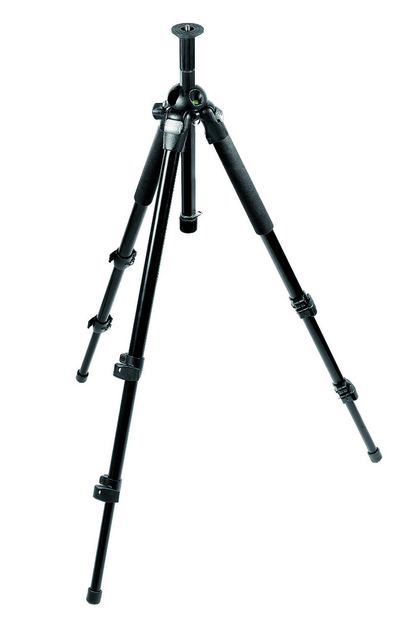
Bogen/Manfrotto gear is recognized as one of the industry leaders in tripods, monopods, and camera equipment. Another serious name in the game is Gitzo, and I’ve heard good things about them too – but for my money, I went with Bogen a few years back in my pursuit of stability. My choice? The Bogen 3021BPro:
This set is really sturdy – made of aluminum and an extended eight of nearly 70″ (69.29 technically), this was a great investment for me. I stand at 6’1″ (73″) so the height appeal was a major contributing factor. Cost-wise, it also came in within my range at roughly $150-$200 new. With quick-clamp leg extensions, and the ability to set up at varying ranges of 25°, 43°, 73° and 90° it was a great investment for me.
With the stability and low price though, came a downside – weight. The legs themselves weigh in at a little over 5 lbs, but I did not plan on being very mobile with the set. So, it was a great starter set for me. The reason why I said “set” though is because any good tripod also needs a good head. You’ll notice from the inserted image that the legs have a lonely screwmount at the top. This does not give you much mobility for the camera when attached, so you really need to also invest in a head.
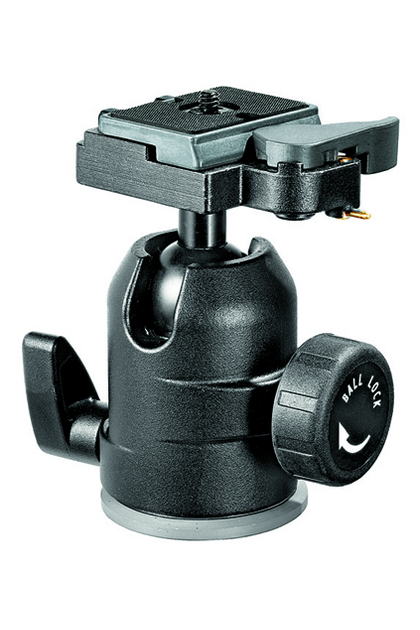
The head attaches to the tripod, and then in turn attaches to your camera and allows you a little more flexibility in moving the camera position around to get the right angle on your shot. There are many types of heads including trigger mounts, ball heads, and pan-and-tilt heads. Rather than get into an extensive discussion of the various heads as well, here it’s sufficient to say I chose the ballhead route. Specifically, I went with the Bogen 488RC2.
This is super nice because it allows you to pivot your camera around very easy and go from landscape to portrait mode in a snap. Also nice is the fact that the head comes with a quick-release plate, basically allowing you to go mobile from your stationary tripod in a snap. I’ll go into the various heads and how they work in some future post. For here though, I got the ehad at about $120, so for less than $300 total, I had a pretty decent workhorse for a tripod/head set. Here again, the only downside I can think of is weight. The head also weighs in at 1.5 lbs so I am getting near 7 lbs of tripod weight total. It doesn’t sound like much, but if you’ve tried lugging a tripod/head combo around on a photowalk, it can get pretty heavy pretty quick if you don’t have some strapped method for carrying it while walking or traveling. For the most part though, it’s lasted me well and worked gloriously – when I remember to take it out of my car!
Eventually I will probably either upgrade this set of legs to the more lightweight, yet also sturdy, carbon fiber material that is becoming more cost effective. At the time when I got this set, carbon fiber was very new on the scene, and thus very expensive. As we see the presence of carbon fiber increase in the market place, the price has also come down some. Not a lot, but enough for me to start considering it. In all likelihood, I could see myself hanging on to this set for studio or location work while also adding to the gear bag with the more lightweight carbon fiber legs for on-the-go types of photography.
All in all though – if you don’t have a set of legs, this would be an excellent starter set. For under $300 your pictures will undoubtedly see marked improvement – that’s assuming of course you don’t forget the gear in your car! Happy shooting all and we’ll see you back here again tomorrow!
So, as many of you know, Scott Kelby, president of the National Association of Photoshop Professionals (NAPP), Kelby Media Group, Kelby Training Live, and leader of the pack of Photoshop guys over at Photoshop User TV, was in Denver yesterday on his Adobe Photoshop Lightroom tour. He led a seminar yesterday that, despite several technical difficulties, was pretty rockin’ when it comes to establishing a work flow in Lightroom.
Scott is also known for his annual worldwide photo walks that he started last year. This year response has just been enormous to the walks, with several cities (including Denver) filling up within the first 24 hours. Well, on his blog this last Monday, he wrote a Q&A post describing the photo walks, what they are, how they work, and all that stuff. One question he snuck in though was that he would be in Denver and did anyone know of any good places to shoot in the downtown area.
Since I work downtown, (pretty close to the Convention Center I might add), I have a fairly good understanding of where things are, and what’s fun to shoot. So, I posted a comment on his blog of where he could go and what might be fun. To my astonishment, he actually wrote me back via email, asing if I’d be interested in going on a photo shoot with him to kinda show him around! Not give him a few locations, not recommend a restaurant – he invited me on a photo shoot! With him! My jaw about hit the floor, but I did respond that it’d be my pleasure to show him around the area. He sent me some info on where he’d be staying and to come on over after work on Tuesday! My jaw hit the floor again. But, regaining my composure, on Tuesday after work, I walked over to his hotel to meet him. Knocked on the door and sure enough – Mr K. himself! The maker of the Kelby Kool-Ade!
For the next 2 hours, we walked around the downtown area – talking shop, and all that stuff. I was silent for about the first 30 minutes, afraid I would say something utterly stupid to embarrass myself, but as I walked and we talked, found that he’s just a regular guy (despite his amazing base of knowledge, and…well, the fact that he’s Scott Kelby!) After a few hours of shooting, I then enjoyed an amazing dinner with him and his crew – names like Bert, Ben, Moose, Matt, Corey, etc., etc., were bandied about in the regular conversation. Needless to say, I kept quiet for most of it, trying to keep my jaw off the floor. I know, I know – they are all people too, but every time someone’s name was mentioned, I just kept thinking to myself, “Yup, I read their blog too!” Oh, and then for the next day’s seminar – he reserved a front row seat for me! It was an incredible day, and I just wanted to take a day here on the blog to give a nod to Scott for being so open and friendly, and just – so, well….cool!
My shots from the day were pretty much lousy as I totally wasn’t paying attention to my technique or anything – just trying not to look like an idiot. Nevertheless, in honor of his visit to Denver, and in hopes of his return:
Ever since Tom Hogarty came on the podcast and I’ve had some time to dive into Lightroom, I am thinking more and more that this is a much better solution for managing all of my photo assets. Since I’ve found myself spending more time in LR and less time in PS CS3 (Extended), I started debating if I really needed so much horsepower under the hood. After all, CS3 Extended is quite the workhorse, from performance, to functionality, to footprint, and of course, price. It left me wondering about my upgrade path.
In all honesty though, I think the term “upgrade” may be a misnomer – after all, am I really using all the features of the full version of Photoshop Cs3? If not, what’s the point in upgrading? Perhaps I should be looking at a downgrade. After all, I really do spend less time post processing these days. So, what are the differences between CS3 and this thing called Elements? Well, for the loyal readers of this blog, I decided to find out.
First up, I downloaded a trial version of Elements 7.0 from Adobe’s website. The download is about half the size of the Photoshop Cs4 download (400+ MB for Windows Elements, and over 800 MB for Photoshop Creative Suite on Windows). To the geek in me, that means a smaller footprint on my hard drive, and less consumption of system resources. Something to consider…
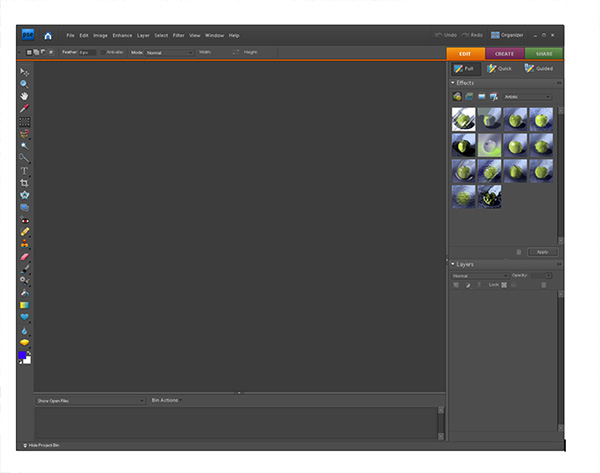
Anyway, I decided to really do a side by side comparison, and loaded CS3 and Elements in their default work spaces, then compared notes. Here’s what I found (CS3 is first, Elements is second):
Photoshop CS3 Default WorkspaceDefault Elements Workspace
Wow! Quite a difference. I first noticed the much darker color of the work space for Elements. Not that big a deal in the grand scheme of things, but something that I would necessarily have to adjust to. So, what else is there? Well, rather than go over each painstaking difference of the two applications, I decided to just give a quick overview here. And, with the quick overview, I figured the best place to start would be the toolbars, since that’s what we really need to use in either of these anyway, right? So, let’s look at them side-by-side:
Photoshop CS3 Extended ToolbarPhotoshop Elements Toolbar
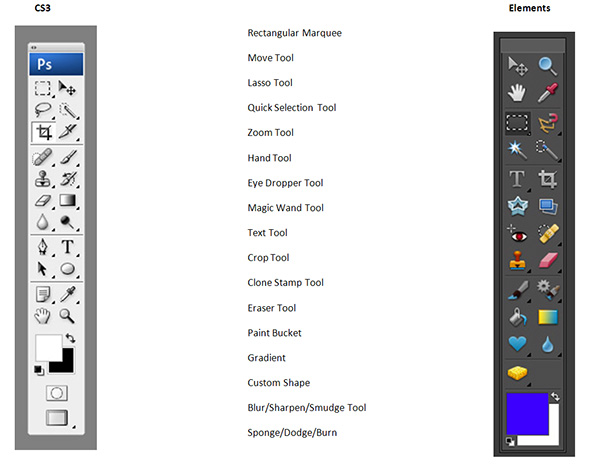
They actually don’t look too diferent when you look at them side by side, do they? I didn’t think so, and I set out to count the various tool bars. Know what? On a quick overview of the 22 tools in CS3, I counted 17 commonalities between CS3 and Elements 7! That’s a lot of overlap! Are there more buried tools in CS3? Most likely. On quick count, I found 60 tools throughout the CS3 Toolbar. In elements, 48! Even still, not a lot extra. From a percentage perspective, that is 20% additional functionality in CS3 Extended versus Elements 7.0 My guess is CS3 Regular would have less of a difference still.
The question is though – how often do you go searching for some buried tool in CS3? As a photographer, in all honesty, not that often. If you think about it, as photographers, we crop, re-size, perhaps straighten an occasional horizon, add some sharpening, and if we want to get really serious with a photo, we’ll do some dodging and burning. All of these functions are present in Elements 7.0
So, why would you want to go with the CS3 or CS4 version of Photoshop – truly if you want to take your photos to the Nth degree, or do serious work like graphic design, web design, or photo restoration, I can totally see the need for some of the more advanced tools in the Creative Suite. But more and more, I find myself using CS3 less and less. Take a look at the commonalities listed below – these are identical features in both applications! It took me a little by surprise when I noticed the similarities even in tool names. See if you can find the common tools from the listing below:
Common Tools between CS3 and Elements
So, what other important factors go into an image editing program for me? Well, having been working in the Creative Suite for a long time – I do enjoy the benefits of layered files for different purposes. Well, guess what – Elements does that too! That means you can edit and save files as PSD’s!
I also like using actions to automate my work flow. Uh Oh…from my initial glance, it does not appear that Elements 7.0 has this functionality built in. But, can it be added? Well, a Google search on the topic of “Elements Actions” says yes, so I think I could probably figure it out enough to eek the process to my needs.
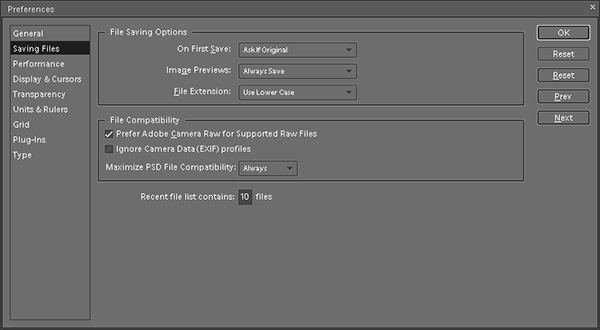
The other major functionality I have an interest in is the ability to edit and manage raw files from my camera. Can I see the raw files? Sure enough, the ACR converter has made its way into Elements as well!
Adobe Camera Raw Converter in Elements
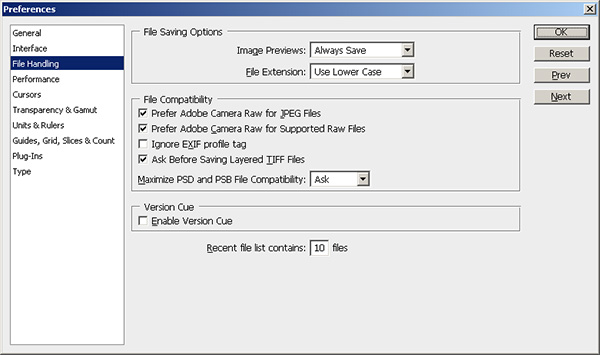
In fact, a lot of the preferences settings seem to have migrated over from Photoshop CS3…look at the same screen from there:
Photoshop CS3 Preferences Settings
As similarities continue to mount, the last major thing to consider is price. Retail, CS4 runs at $700 for the full price, an upgrade runs $200. Elements? Well, I think y’all know where this is headed: Retail $139 and upgrade for $119. I don’t know about you, but that is a HUGE cost savings. It almost seems too good to be true, and given my penchant for not taking things at face value – I will take a look at the image processing capabilities in greater detail next week. We’ll take a look at noise handling, speed, performance, and see how it does with a variety of images from my Canon 40D.
The biggest downside that I can see is that you don’t have the color management capabilities in Elements that you have in the Creative Suite – I like making some LAB adjustments from time to time, and filters may suffer in availability too – but more on that next week.
For the time being though, given the similarity in apparent functionality, the reduced price for Elements, and the proportionate footprint on my computer – Elements is definitely a contender. For all I know – as I learn more about Lightroom after the workshop from Scott Kelby and NAPP on Wednesday, the idea of a separate application for image editing may go by the wayside too, especially when the cost for the CS product is 400% that of Elements.
So, what do you think? Anyone out there using Elements? Any other downgraders care to share their thoughts? Have you enjoyed downsizing? Found things you missed? Workarounds? Add-ons? Tell me more as I continue to explore Elements next week – I’ll add reader observations there too! In the meantime, happy shooting, and we’ll see you back here tomorrow after the NAPP workshop!
In keeping with the last few weeks of hardware reviews, I am taking a look in my own bag one more time to bring you this weeks’ hardware review: the 70-200mm L lens from Canon. Canon has several variants on this lens, with different minimal apertures both with and without Image Stabilization (IS). So, in the interests of full disclosure, this is a non-IS lens, and the aperture range is the standard one, 4.0 to 5.6. So, with that distinction being made, we’re off and running:
Canon's 70-200mm f4.0 lens
The “L” distinction is one that bears discussion right off – Canon only gives this out to lenses that it deems have superior optics – which means a wider range for it’s sweet spot, tack sharp focus, and better sealing against the elements. This naturally means that this lens will, by definition and categorization, be sharper than a comparable “non-L” lens. However, for this particular range of zoom, Canon doesn’t make a non-L lens, so one would have to make a comparison with a 3rd party brand such as Sigma or Tamron. Even there though, comparisons are tricky primarily because vendors are moving toward faster glass (in the 2.8 category) and IS features.
In that regard, the 70-200 f4.0 really is in a class by itself. As a result of its unique status in the field of available lenses, comparisons are rather arbitrary as no other lens out there has the same specs. Rather than making those comparisons though, I’ll just say that this lens does deliver superior performance for its’ category.
So, how is this a review? Well, it’s not just a question of performance, it’s also a question of price. Anything can be stellar, but whether it’s worth the price is another story. I know of luxury cars that exceed 6 figures for their cost, however, most cannot justify the expense, either because of their financial situation or the expected need. So, how does the 70-200 fit when it comes to cost? Pretty well actually.
The cost for this lens at B&H Photo is $600 right now (technically $599.95) after a $50 rebate. Considering the next step up is twice the price for either an f2.8 or an IS lens, this is actually a steal! I was able to find mine second hand from a fellow photographer when I lived in SC, so got it for considerably less. Included in my package was a lens hood, and a collar for mounting to a tripod (which I definitely would recommend given the weight). The previous owner was also nice enough to leave the Tiffen filter on it that provided protection for the lens. All told, the lens and accessories would run around $700 for the lens, lens hood, UV filter, and tripod collar.
When looking at comparable other lenses from Canon, this is where you really see the bang for the buck. Take a look at the most recent prices from B&H for similar lenses:
70-200L f2.8 = $1250
70-200L f2.8 IS = $1600
70-200L f4.0 IS = $1025
So, you can save at least $425 if IS isn’t important to you, or $650 for the next fastest version of this lens
At a smidge over 1.5 lbs, the weight does balance the mid-grade SLR’s quite nicely, although on the Rebel line I recall it being a tad heavy. As a general rule of thumb, with larger and heavier lenses, you’ll want to carry this by the lens itself rather than the camera as you don’t want to put undue tension on the mount.
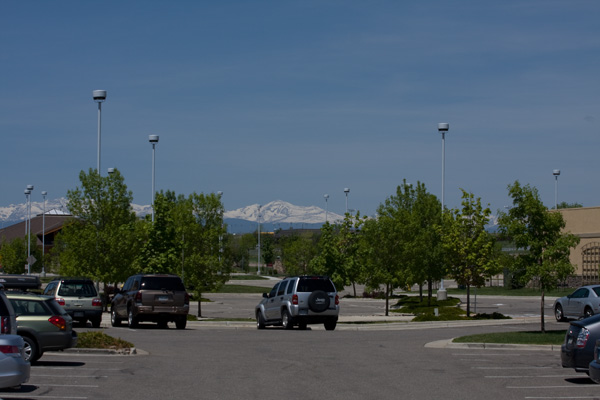
Overall though, for the price and range, I would highly recommend this lens. It’s tack sharp at both 70 and at 200 with a sweet spot ranging from f5.6 to f16. Kind of hard to say no to that kind of quality when it’s offered at such an affordable price. Here’s some sample shots to show what I’m talking about:
Here’s a sample from 70mm at f9.0
The Rocky Mountainsfrom a distance
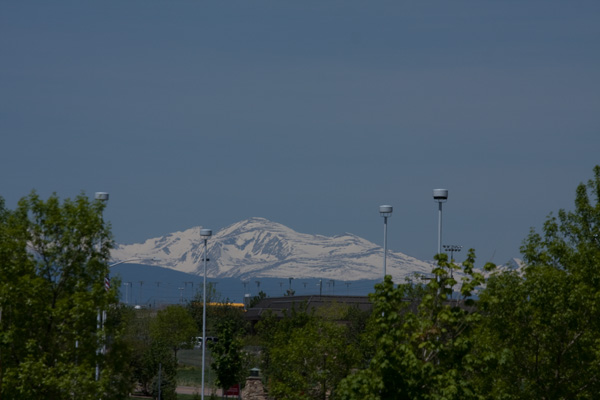
And the same scene from 200mm at the same aperture:
The Rocky Mountains
Then, just to give you an idea of the sharpness, here’s some shots at f4.0 (a little noiser because I was at ISO 3200)…first the 70mm shot:
What time is it?
And now at 200mm:
What time is it?
And the 200mm shot:
Okay, so that’s about it for the day. Hope you found it useful and informative (as always). Don’t forget the Lightroom Contest going on over at the Flickr Thread – only about 12 more days left and still not a lot of entries. Great chance to win a free copy of Adobe Photoshop Lightroom (retails for $300)! If you have ideas, suggestions, comments, feedback or other insights on future gear you’d like reviewed, feel free to share those in the comments below or with me via email.
One last little nugget to share today…Scott Kelby announced his 2nd Annual Photowalk early this morning, so be sure to register in your city. I’m already registered in the Denver group and that’s rolling early (7:45ish am) in the Lodo area. More details to come on route, eating place, etc. , but mark your calendars now for July 18th! Here’s the link for more info if you’re not in Denver: Worldwide Photowalk Have a great day, Happy Shooting, and we’ll see you back here again tomorrow!