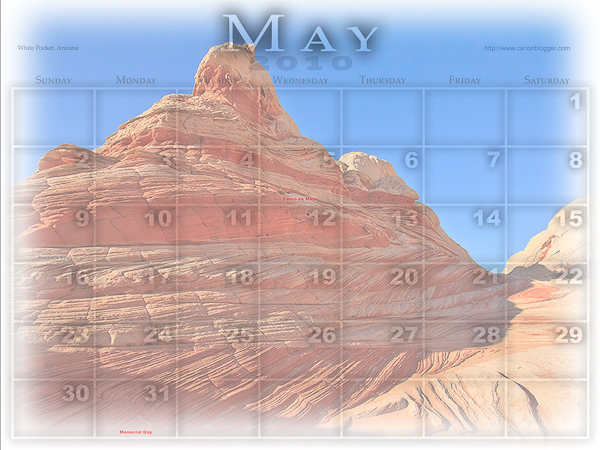
I alluded to it yesterday, and have already had several people inquire about the procedure to create this desktop calendar. It’s really quite clever, and kudos go out to Jeffrey Friedl over on his site for the script: http://regex.info/blog/photo-tech/calendar He does a decent job at the basic explanation, but since we are a visual world, here are some step-by-step instructions on how to run things from beginning to end! Fair warning – this does require Photoshop as the script (I don’t believe anyway) will run in Lightroom because it uses layers…
1. Download the script from the link above (I downloaded to my desktop on Windows XP)
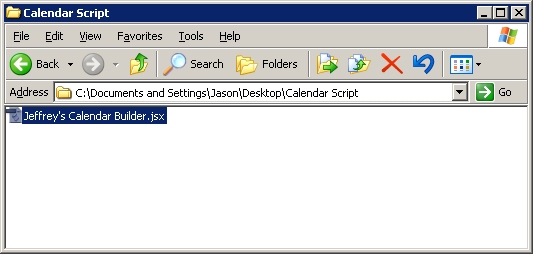
2. Copy the script from your desktop (or whatever download location you configured for your browser) to your Photoshop folder, as indicated in the screen shot.
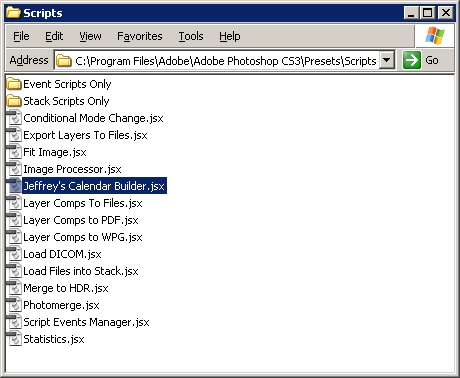
3. Open Photoshop (if it was already open, you should probably close PS and restart it)
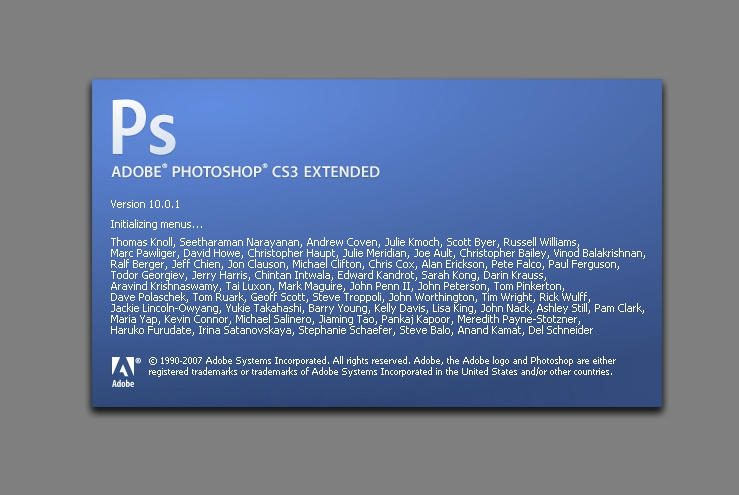
4. Open the picture you want to apply the script to (I started with the largest size desktop I wanted to configure it for, in this case 1600 x 1200.
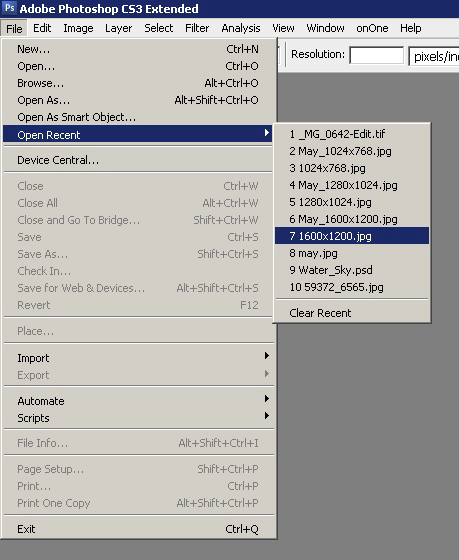
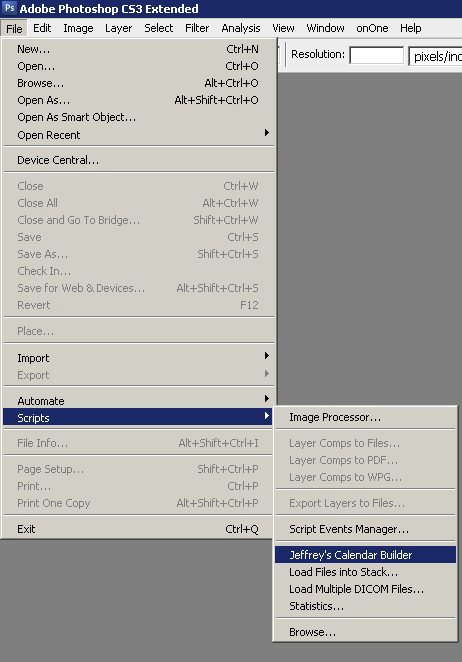
5. Navigate to the Presets option in Photoshop and open the script
6. The interface lets you select certain information such as the month it will run for, when the week starts, etc.
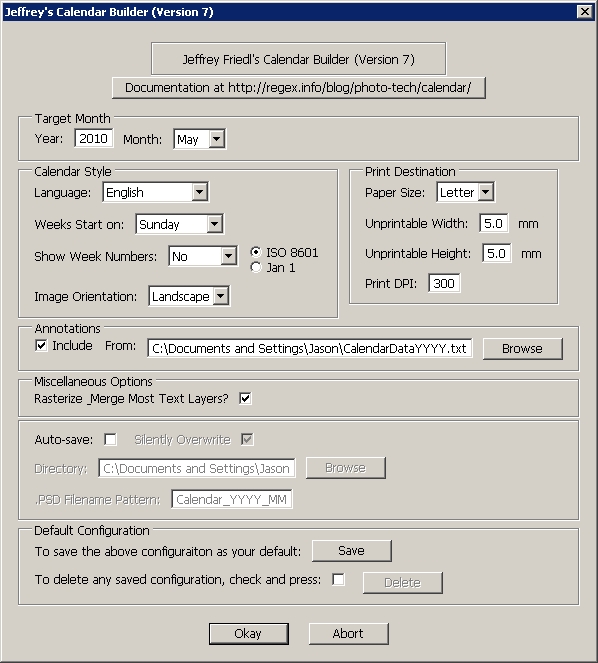
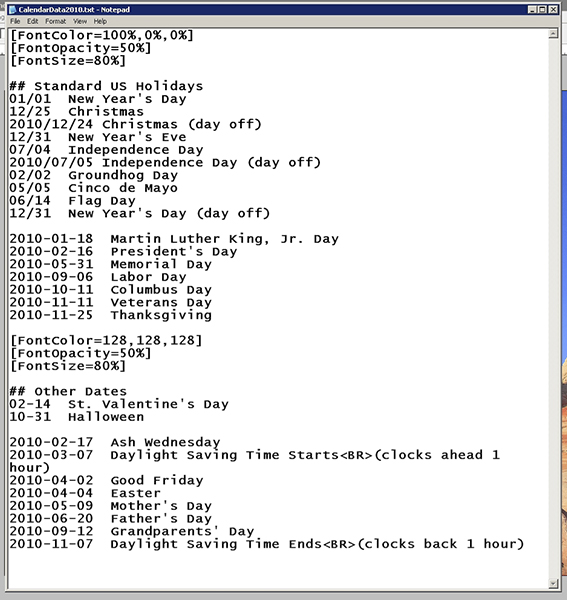
7. Special mention here to include certain holidays – if you have custom days (say birthdays, anniversaries, etc) to add, create a text file for reference and point the script to that txt file location. If you don’t want certain days highlighted,you can leave this option un-checked and proceed with the script.
8. It may take the script some time to run (it took me about 58-61 seconds to run it on my computer, but I was multitasking with other things at the time…). When it’d done, you’ll get a stack of a lot of layers that looks like this, with the default layer selected of “Picture Mask”. Note: I’d also recommend checking the option to rasterize most text layers otherwise you’ll have up to 30 additional layers of text (one for each day of the month)! The layers underneath this are where all the really cool stuff is, and the other layers are dates and effects that you can change to suit your own tastes.
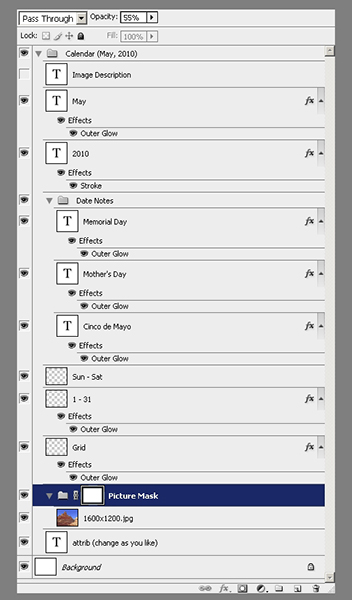
9. Once you have tailored the layers to suit your needs, simply flatten, save as a jpg and configure your desktop to use that image! Since I typically will save to multiple desktop dimensions, I start with the original and re-size to each output, from largest to smallest saving each as a jpg then letting the script use that to create the desktop calendar.
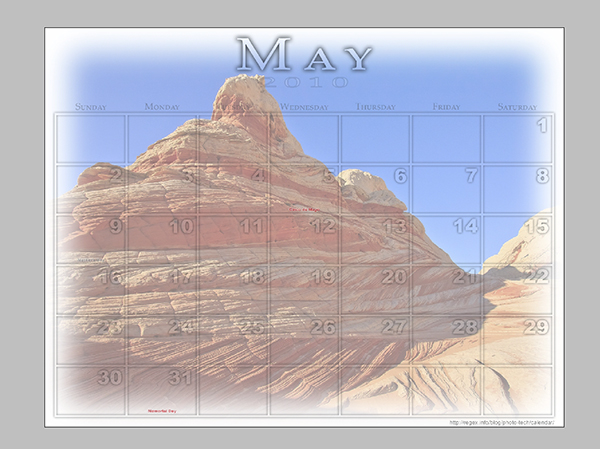
There you have it! The nitty gritty details on how to create a really slick looking desktop calendar for you and your clients. Simply print as pictures through your favorite venue if you like and watch the sales come in!
One final little news note that is time sensitive – DIY Photography has a very creative approach to contests and the prize package is worthy of a nod (don’t know how he/she/they managed to come up with this big bag of goodies!), so stop over here and throw your hats in the ring: http://bit.ly/aRQa9l
See you back here tomorrow for the latest in photo goodness! I’ll also bring up a couple tips on how to tweak the layers to your own ends, but feel free to begin exploring your own creative approaches! 🙂